

How to Split PDF Files Online Easily Without Losing Formatting
Learn how to split PDF files online quickly and securely without losing formatting or quality. Extract pages, divide large PDFs, separate chapters, invoices, contracts, and documents with an easy free PDF splitter tool. Perfect for business, education, legal, and personal document management.
How to Split PDF Files Online Easily Without Losing Formatting?
PDF files are excellent for sharing documents because they preserve formatting across devices. However, there are many situations where you may only need part of a PDF instead of the entire document.
Maybe you need to:
Send only one chapter of a report
Extract selected pages from a contract
Divide a large PDF into smaller files
Separate invoices, forms, or scanned documents
Instead of recreating the file manually, you can simply split the PDF into smaller documents.
In this guide, you'll learn how to split PDF files quickly, when to use PDF splitting, and the best practices for keeping your files organized.
What Does “Split PDF” Mean?
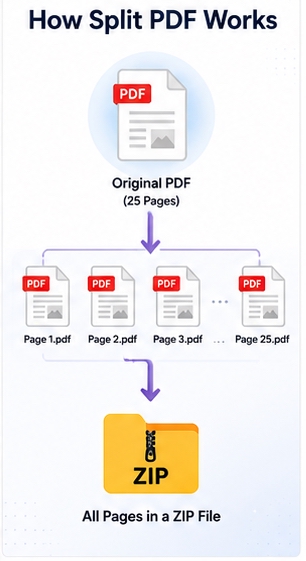
Splitting a PDF means breaking one PDF document into multiple smaller PDF files.
For example:
A 100-page PDF can be split into:
10 separate 10-page files
You keep the original formatting, fonts, images, and layout while creating smaller, easier-to-manage documents.
Why Would You Need to Split a PDF?
Splitting PDFs is useful in both personal and professional workflows.
1. Share Only Required Pages
Instead of emailing an entire document, you can send only the relevant section.
Examples:
Resume page only
One chapter from an ebook
Selected report pages
Individual invoices
Smaller files are easier to upload, download, and review.
2. Organize Large Documents
Large PDFs can become difficult to manage.
Splitting allows you to organize files by:
Topic
Department
Month
Client
Project
Subject
This makes document management cleaner and more efficient.
3. Reduce Upload Issues
Some websites have upload size limits.
Splitting large PDFs helps when submitting:
Government forms
Job applications
Academic assignments
Tax documents
Legal paperwork
4. Extract Important Pages
Sometimes you only need a few pages from a lengthy document.
A PDF splitter helps you extract:
Signature pages
Certificates
Statements
Tables
Forms
Presentation slides
How to Split a PDF Online Step by Step
Using an online PDF splitter is usually the fastest method.
Step 1: Upload Your PDF
Choose the PDF file from your computer, phone, or cloud storage.
Most tools support:
Small PDFs
Large PDFs
Multi-page files
Scanned documents
Step 2: Split PDF Now
The tool creates the new PDF files while maintaining:
Formatting
Images
Fonts
Page layout
Quality
Step 3: Download the Result
Download your newly split PDFs instantly as ZIP.

Best Use Cases for Splitting PDF Files
Business Documents
Businesses often split PDFs for:
Contracts
Purchase orders
Invoices
Proposals
Financial reports
Students and Teachers
Educational use cases include:
Separating assignments
Extracting chapters
Splitting study materials
Organizing lecture notes
Legal and Administrative Work
Legal documents frequently require page extraction.
Examples:
Agreements
Court records
Identity documents
Evidence files
Designers and Creatives
Creative professionals may split:
Portfolios
Presentation decks
Mockups
Brand guides

Split PDF Without Losing Quality
One common concern is quality loss.
A properly processed PDF split should preserve:
✔ Text clarity
✔ Image quality
✔ Font styling
✔ Page structure
✔ Original layout
Splitting does not normally compress or degrade a PDF.
However, choose a reliable tool that keeps document integrity intact.
Common Mistakes to Avoid When Splitting PDFs
Overwriting the Original File
Keep your original PDF untouched.
Create separate output files instead.
Forgetting File Naming
After splitting, rename files clearly.
Example:
Bad:
document-final-v2-new.pdf
Better:
Contract-ClientA-Part1.pdf
Ignoring Page Order
Verify page order after splitting, especially for reports and contracts.
Split PDF vs Extract PDF Pages — What’s the Difference?
People often use these terms interchangeably, but there is a small difference.
Split PDF
Divides a document into multiple files.
Extract Pages
Pulls out selected pages from a document.
Example:
A 50-page report.
Split:
File 1 → Pages 1–25
File 2 → Pages 26–50
Extract:
Only pages 7, 15, and 31.
Is Splitting PDFs Safe?
Because processing happens locally in your browser, your files typically do not leave your device.
This is especially useful for:
Contracts
Financial reports
Personal documents
Passport photos
Private images
Frequently Asked Questions (FAQ)
Can I split a PDF for free?
Yes. Many online tools allow you to split PDFs without installing software.
Can I extract only one page from a PDF?
Absolutely. You can select a single page and create a new PDF file from it.
Does splitting a PDF reduce quality?
No. Splitting normally preserves the original document quality.
Can I split scanned PDFs?
Yes. Most modern PDF splitters support scanned and image-based PDFs.
Can I split large PDF files?
Yes. Large documents can usually be divided into smaller sections or page groups.
Need to separate pages quickly?
Use our Split PDF tool to extract pages, divide large files, and organize documents online in seconds — no installation required.